

Most people assume a wireless keyboard is a wireless keyboard, full stop. Plug in the small USB receiver, and everything works. That assumption leads to a surprising number of frustrating afternoons spent swapping dongles, reinstalling drivers, and wondering why a perfectly good keyboard refuses to respond. The reality is that wireless keyboard dongles operate on specific protocols, carry factory-paired identities, and behave in ways that differ significantly from Bluetooth. This guide covers what a wireless keyboard dongle actually is, how it works at a technical level, where compatibility breaks down, and how to resolve the most common signal problems without wasting time on unnecessary software fixes.
Table of Contents
- What is a wireless keyboard dongle?
- How does a wireless keyboard dongle actually work?
- Types of wireless keyboard dongles and compatibility issues
- Typical wireless keyboard dongle issues and troubleshooting tips
- Why most advice about wireless keyboard dongles misses the mark
- Upgrade your wireless setup with the right accessories
- Frequently asked questions
Key Takeaways
| Point | Details |
|---|---|
| Not all dongles are equal | Proprietary protocols mean most wireless keyboard dongles cannot be swapped between brands. |
| Hardware setup trumps software fixes | Dongle placement and USB port choice often solve more issues than driver changes. |
| Simple translation | A wireless dongle essentially converts radio signals into keystrokes your computer understands. |
| Know your tech | 2.4 GHz dongles differ from Bluetooth and need matching keyboards to function. |
What is a wireless keyboard dongle?
A wireless keyboard dongle is a small USB device, typically no larger than a thumbnail, that acts as a radio receiver for a wireless keyboard. It plugs into a USB port on your computer and listens for signals broadcast by the keyboard. The operating system sees it as a standard USB keyboard, which means no special drivers are required in most cases.
It is important to distinguish between two fundamentally different wireless technologies. The first is 2.4 GHz RF (radio frequency), which is what most wireless keyboard dongles use. The second is Bluetooth, which is a separate wireless standard built into many modern laptops and desktop computers. These two technologies are not interchangeable. A 2.4 GHz RF dongle cannot communicate with a Bluetooth keyboard, and a Bluetooth adapter cannot pair with an RF keyboard.
A wireless keyboard dongle is usually a small USB RF receiver that lets a wireless keyboard communicate over a proprietary 2.4 GHz link.
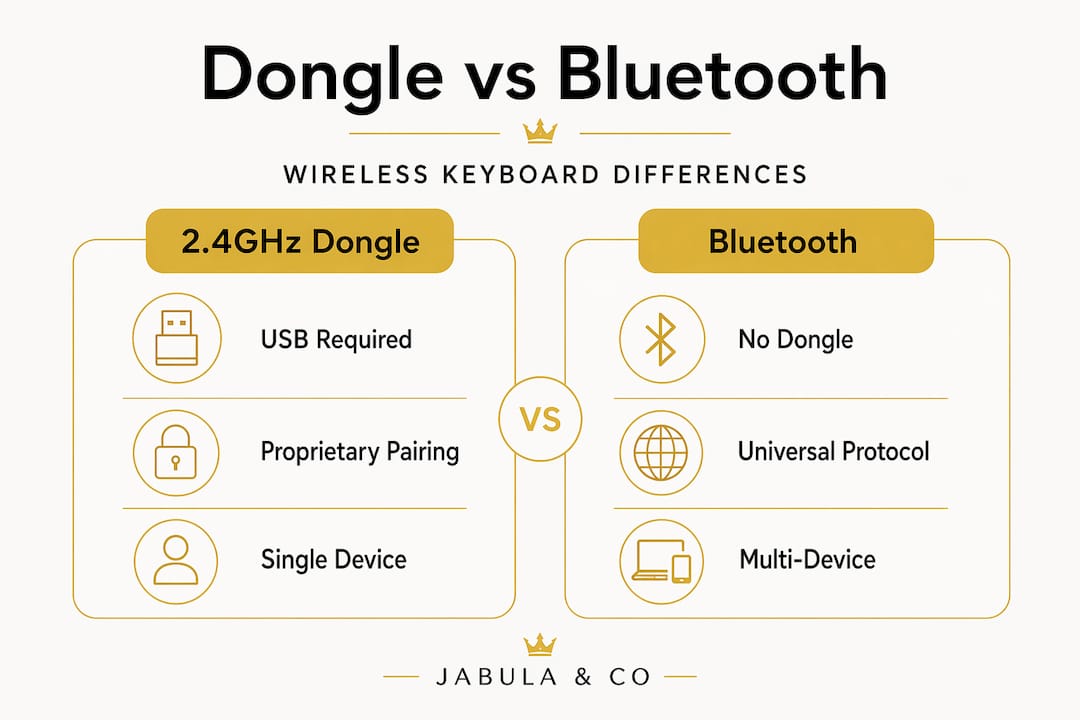
The table below summarises the key differences between the two technologies at a glance.
| Feature | 2.4 GHz RF dongle | Bluetooth |
|---|---|---|
| Requires USB receiver | Yes | No (uses built-in adapter) |
| Plug-and-play | Yes, factory-paired | Requires manual pairing |
| Range | Up to 10 metres | Up to 10 metres |
| Latency | Very low | Slightly higher |
| Protocol | Proprietary per brand | Open standard |
| Device compatibility | Locked to paired keyboard | Works across many devices |
The dongle acts as a translator. It receives encoded RF packets from the keyboard, decodes them, and outputs a standard USB keyboard signal to the computer. This entire process is invisible to your operating system. From the computer’s perspective, it is simply receiving input from a wired USB keyboard. The RF communication layer is handled entirely by the dongle itself, which is why the process is so seamless when everything is working correctly.
How does a wireless keyboard dongle actually work?
Every time you press a key, a small sequence of events takes place in milliseconds. Understanding this sequence helps clarify why dongles behave the way they do and why certain problems occur.
- Key is pressed. The keyboard’s internal microcontroller detects the keypress and identifies which key was activated.
- Data packet is created. The microcontroller encodes the keypress into a small data packet. Most modern wireless keyboards encrypt this packet using AES-128 encryption to prevent signal interception.
- Packet is broadcast. The keyboard transmits the encrypted packet over the 2.4 GHz radio frequency band.
- Dongle receives the packet. The USB dongle, which is constantly listening on the agreed frequency channel, picks up the broadcast.
- Packet is decoded. The dongle decrypts and decodes the packet using the shared encryption key established during factory pairing.
- USB signal is output. The dongle converts keystrokes into standard USB input so that the operating system never needs to speak the RF protocol directly.
This is why factory pairing matters so much. The keyboard and dongle share a unique encryption key that is set during manufacturing. When you buy a wireless keyboard, the dongle included in the box is already paired to that specific keyboard. You do not need to do anything except plug in the dongle and start typing.
Pro Tip: If you lose your dongle, you cannot simply buy a generic replacement. You need either the exact replacement dongle from the manufacturer or, in some cases, a compatible multi-device receiver from the same brand. Always keep your dongle stored safely when not in use.
Think of the dongle as a language translator stationed at the computer’s door. The keyboard speaks a proprietary dialect of RF. The computer only understands USB keyboard signals. The dongle sits in between, fluently converting one language into the other in real time. This analogy also explains why swapping dongles between keyboards from different brands almost never works. They are speaking entirely different dialects.
Bluetooth adapters work differently. They use an open, standardised protocol, which is why a single Bluetooth adapter can pair with a keyboard, a mouse, headphones, and a smartphone. The trade-off is slightly higher latency and a more involved pairing process. For most typing tasks, the difference in latency is imperceptible, but for gaming or fast-paced input, 2.4 GHz RF dongles are generally preferred.
Types of wireless keyboard dongles and compatibility issues
Not all wireless keyboard dongles are created equal. Each major manufacturer uses its own proprietary protocol, and even within a single brand, different product lines may use incompatible receivers.
Logitech, for example, has produced several generations of wireless receivers. Their Unifying Receiver (identified by the orange star logo) can pair with up to six compatible Logitech devices simultaneously. However, their newer Bolt receiver uses a different, more secure protocol and is not backward-compatible with Unifying devices. Microsoft uses its own proprietary protocol across its wireless range. Other manufacturers follow similar patterns.
As noted by Lifewire, dongles are not all interchangeable across brands or protocols, and even Logitech’s own wireless technologies are not always compatible with one another. This is one of the most common sources of confusion for users who assume that any dongle from the same brand will work with any keyboard from that brand.
The risks of mixing and matching dongles include:
- Complete failure to pair. The keyboard and dongle simply do not recognise each other.
- Partial functionality. Some keys may work while others do not, due to protocol mismatches.
- Security vulnerabilities. Using an unverified third-party dongle can expose your keystrokes to interception if encryption is not properly implemented.
- Voided warranty. Using non-original accessories may affect your product warranty.
Visual cues to check before purchasing a replacement dongle:
- Look for a logo or symbol on the dongle itself (such as Logitech’s orange star for Unifying).
- Check the product packaging for protocol names or receiver compatibility lists.
- Use manufacturer-provided software tools (such as Logitech’s Connection Utility) to verify compatibility.
- Cross-reference the model numbers of both the keyboard and the dongle in the manufacturer’s support documentation.
If you are looking for a straightforward solution that avoids compatibility headaches entirely, a mini keyboard mouse combo that ships with its own dedicated dongle removes the guesswork. The keyboard and receiver are already paired, tested, and ready to use out of the box.
Pro Tip: Before discarding a dongle, check whether your keyboard manufacturer offers a re-pairing utility. Some brands allow you to pair a keyboard to a new receiver of the same protocol family using software, which can save you the cost of replacing the entire keyboard.
Typical wireless keyboard dongle issues and troubleshooting tips
Even with a correctly matched dongle, signal problems can occur. The good news is that most issues are caused by physical factors rather than software problems, which means the fixes are straightforward once you know where to look.
Common issues and their causes:
- Signal dropout. The keyboard stops responding intermittently. Usually caused by interference from other 2.4 GHz devices such as Wi-Fi routers, cordless phones, or microwave ovens.
- Random lag. Keystrokes appear on screen with a noticeable delay. Often caused by the dongle being too far from the keyboard or being obstructed by metal surfaces.
- Intermittent connection. The keyboard connects and disconnects repeatedly. Frequently caused by the dongle being plugged into a USB 3.0 port, which generates electromagnetic interference on the 2.4 GHz band.
- No connection at all. The computer does not recognise the keyboard. This usually points to a depleted battery in the keyboard or a faulty USB port.
Physical factors, including dongle placement, USB port selection, and avoiding interference near USB 3.0 hubs, are often more actionable than software or operating system changes.
Practical fixes to try first:
- Move the dongle to a USB 2.0 port rather than a USB 3.0 port. USB 3.0 ports are known to emit interference on the 2.4 GHz frequency band.
- Use a short USB extension cable to position the dongle closer to the keyboard and away from the back of a desktop tower where metal casing can block signals.
- Keep the dongle within 3 to 5 metres of the keyboard for the most reliable connection, even if the stated range is higher.
- Replace the keyboard batteries before attempting any other fix. Low battery power is one of the most overlooked causes of erratic wireless behaviour.
- Avoid placing the dongle near other USB devices, particularly USB 3.0 hard drives or hubs.
Pro Tip: A 30-centimetre USB extension cable costs very little and can dramatically improve signal reliability. Position the dongle on top of your desk rather than plugged directly into the back of a tower unit.
Drivers and operating system settings are rarely the root cause of dongle problems. Most wireless keyboard connection issues resolve with physical adjustments rather than software reinstalls. If you have exhausted all hardware fixes and the problem persists, then checking for driver updates or testing on a different computer is a reasonable next step. For users interested in a completely different approach, a virtual laser keyboard eliminates dongle concerns altogether by projecting a keyboard surface and using Bluetooth for connectivity.
Why most advice about wireless keyboard dongles misses the mark
Most online guides about wireless keyboard dongles follow a predictable pattern. They tell you to uninstall and reinstall drivers, reset the keyboard, update Windows, and check device manager. These steps are not wrong, but they consistently overestimate the role of software in resolving what are almost always hardware and physical setup problems.
The uncomfortable truth is that if your dongle and keyboard are not factory-paired to each other, no amount of driver reinstallation will make them work together. Manufacturers, even within the same brand, use protocols that are fundamentally incompatible. A Logitech Unifying dongle and a Logitech Bolt keyboard will never pair, regardless of what software you install. This is not a bug. It is by design, and most online troubleshooting guides fail to make this clear.
What actually matters in the majority of real-world cases is the physical setup. Is the dongle in a USB 2.0 port? Is it within a reasonable distance of the keyboard? Is the keyboard battery fresh? Is the dongle the original one that shipped with the keyboard? These four questions resolve the vast majority of wireless keyboard problems. Software is almost never the issue.
There is also a tendency in online guides to recommend “resetting” the keyboard as a first step. This is largely unhelpful unless the keyboard has a documented re-pairing mode. Most keyboards do not need to be reset. They need their dongle placed correctly and their batteries replaced.
The practical takeaway is straightforward. Start with hardware. Check the pairing status, the port, the placement, and the batteries. Only move to software troubleshooting if all physical factors have been ruled out.
Upgrade your wireless setup with the right accessories
Armed with a clearer understanding of how wireless keyboard dongles work, the next step is ensuring your setup is built on reliable, well-matched hardware from the start.

At Jabula & Co, we stock wireless accessories that take the guesswork out of compatibility. Our mini keyboard mouse combo ships with a dedicated 2.4 GHz dongle, already factory-paired and ready for immediate use across laptops, desktops, smart TVs, and more. For those who prefer a dongle-free experience, our laser keyboard option uses Bluetooth connectivity and projects a full keyboard surface, combining innovation with practicality. Both options are curated for performance, style, and ease of use, with worldwide shipping and secure checkout.
Frequently asked questions
Are wireless keyboard dongles interchangeable between brands?
No. Most dongles use proprietary protocols and are not compatible across brands. Compatibility issues can also occur between different product lines within the same brand.
What is the main cause of wireless keyboard dropout or lag?
Physical factors such as receiver placement, USB port type, and interference from nearby devices are the most common causes, not software or driver problems.
Do I need to install special drivers for my wireless keyboard dongle?
Generally, no. The dongle converts keystrokes into standard USB input, so modern operating systems recognise it without any additional driver installation.
Can I pair a Bluetooth keyboard using a 2.4 GHz wireless dongle?
No. Bluetooth and 2.4 GHz RF wireless use entirely different communication protocols and are not natively compatible with each other.
Recommended
- 2.4G Wireless Keyboard And Mouse Protable Mini Keyboard Mouse Combo Se – Jabula & Co
- LEING FST Virtual Laser Keyboard Bluetooth Wireless Projector Phone Keyboard For Computer Pad Laptop With Mouse Function - Jabula & Co
- Wireless Mouse For Tablets And Laptops – Jabula & Co
- Mini Magnetic Power Bank 5000mAh Wireless - Fast Portable Charging – Jabula & Co